
In SiteLink by Storable, Forms are the documents you send out to customers, such as invoices, late letters, quotes, and receipts.
Create or Edit a form
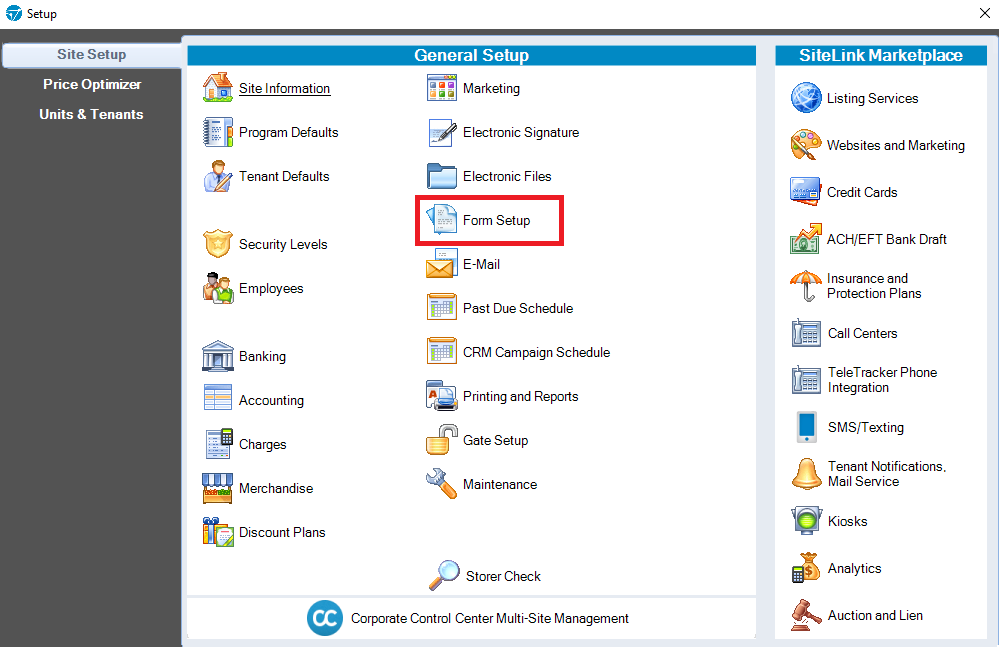
1. In SiteLink Web Edition, click Setup. |
|
2. Click Form Setup. |
|
|
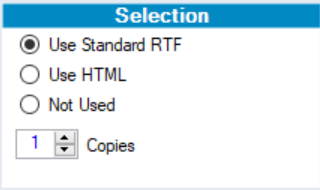
3. You will see a list of all the documents in your database and whether the document you are using is RTF or HTML.
Note: SiteLink Support isn’t able to assist with fixing HTML documents that weren’t created by SiteLink Support. However, SiteLink Support can create HTML documents for you upon request, subject to additional fees. If you have an RTF version and an HTML version of the same document, you can choose which document to make active by clicking Use Standard RTF or Use HTML at the top right and then clicking Save. |
|
|
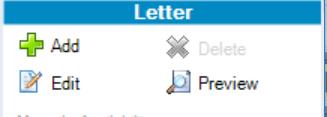
4. Click the document you want to select, then click either Add or Edit on the right. A pop-up will appear asking whether you would like to edit an RTF or HTML version of the form. If you would like to create a new document, click Add instead. |
|
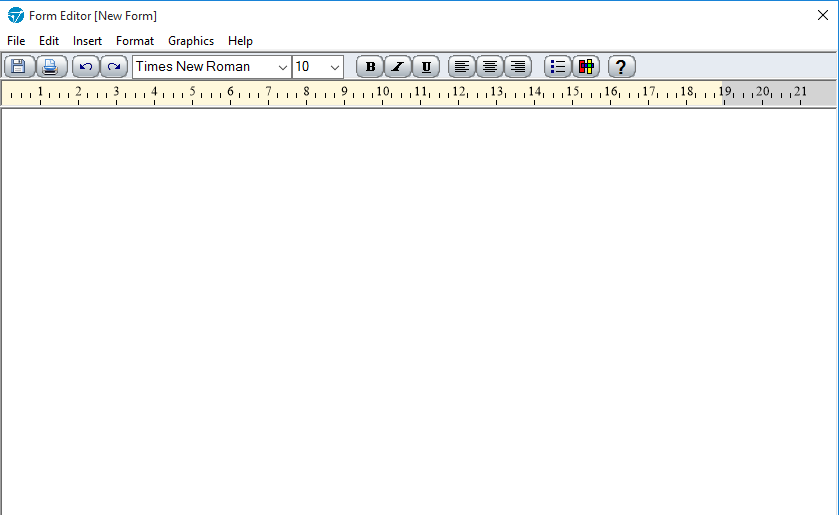
A new document will look like this: |
|
|
To start adding content to your document, you can simply start typing and use the formatting options in the bar at the top. You can also import an RTF document created in a different program by clicking File and then Import. |
Inserting dynamic content
Keywords are what SiteLink uses to automatically fill in data from your database, such as the customer’s name, address, etc.
Click Insert, and then Keyword, and a new menu will open. This menu lists SiteLink’s keywords ready for you to select. The Keyword column shows the keyword name, and the Description column shows the data that will actually appear in the letter the customer receives.
You can search for a certain phrase to narrow down the keywords in the Search All bar at the top of the screen. For example, if we were to search for “Tenant”, every keyword related to the tenant will appear in the list.
Double-clicking on a keyword in this list will insert the keyword into your document where your cursor was last.
Once you are finished creating or editing the letter, click File and then Save Form to save the document.
What elements should not be used in forms?
The SiteLink by Storable firewall blocks certain elements, such as external content (e.g., rel="stylesheet" and <script> tags), from being used in forms to maintain high security and protect against outside threats.
Could there be restricted elements in my forms?
Restricted elements have changed over time as security best practices have evolved. Previously, fewer elements were blocked by our firewall, so older forms may include elements that were not prohibited at the time they were created but are now restricted.
How do I know if my forms contain restricted elements?
Restricted elements in forms typically cause rendering issues because they are blocked by our firewall. Layout and basic styling tags, such as table tags (<table>, <tr>, <td>) and headers (<h1>, etc.), are safe to use; however, most other external content or <script> tags should not be included. If you encounter rendering issues with your forms, check whether external content, styling, or <script> tags are being used.
What should I do if my forms contain restricted elements?
We recommend removing any code other than basic layout and styling tags. In particular, external content or <script> tags cannot be used.