
Follow the instructions below to reprint a past due letter or invoice. You can find instructions to reprint a letter other than a past due letter in our article: How do I reprint a letter?
Reprint a past due letter
To reprint a past-due letter, you first need to reverse the past-due notice for the customer(s).
1. From the Operations screen in SiteLink Web Edition, click Tasks and Letters. |
|
2. Click Reverse: Past Due Notice under Select a Task in the top left corner of the screen. |
|
3. Click the checkbox for each tenant you need to reverse from the list and click Process. |
|
|
4. Select Past Due Notice from the Select a Task menu. Select the tenant(s) you just reversed, then click Process. |
|
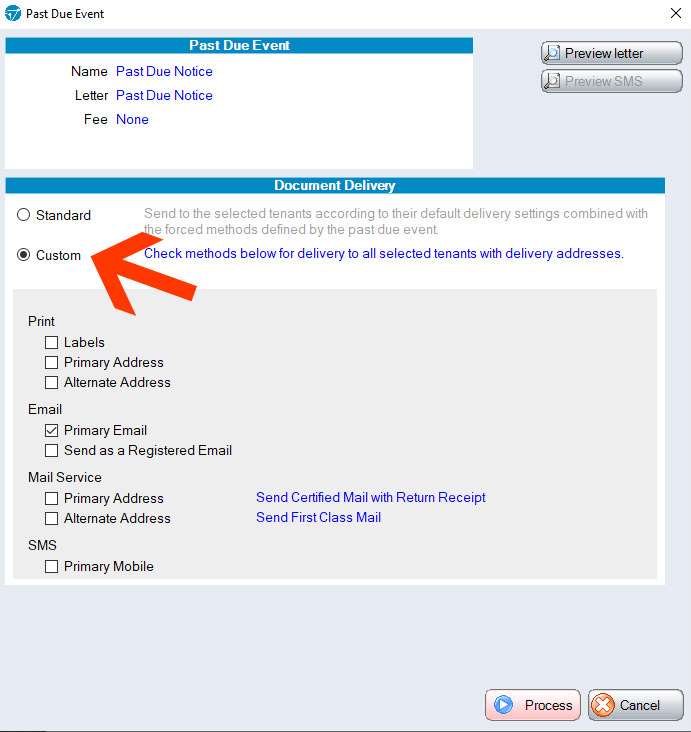
5. On the next screen, click Custom and then select Print, Email or Mail Service depending on how you would like to send the notice. Click Process. |


Reprint an invoice
1. From the Operation screen, click Invoice. |
|
2. Click the Unpaid Invoices tab and then check the boxes to select the tenant/s you need to reprint. Click Process. |
|
3. You will then be able to select a delivery method for the invoice. Select Custom, then choose the delivery method you want to use. Click Process when you’re done. |


Note: Following these steps to reprocess an unpaid invoice will not create a double charge on the account.