
If you have set up SMTP emails but emails are not sending from SiteLink by Storable, follow the steps below to troubleshoot the issue:
Check your SMTP email settings:
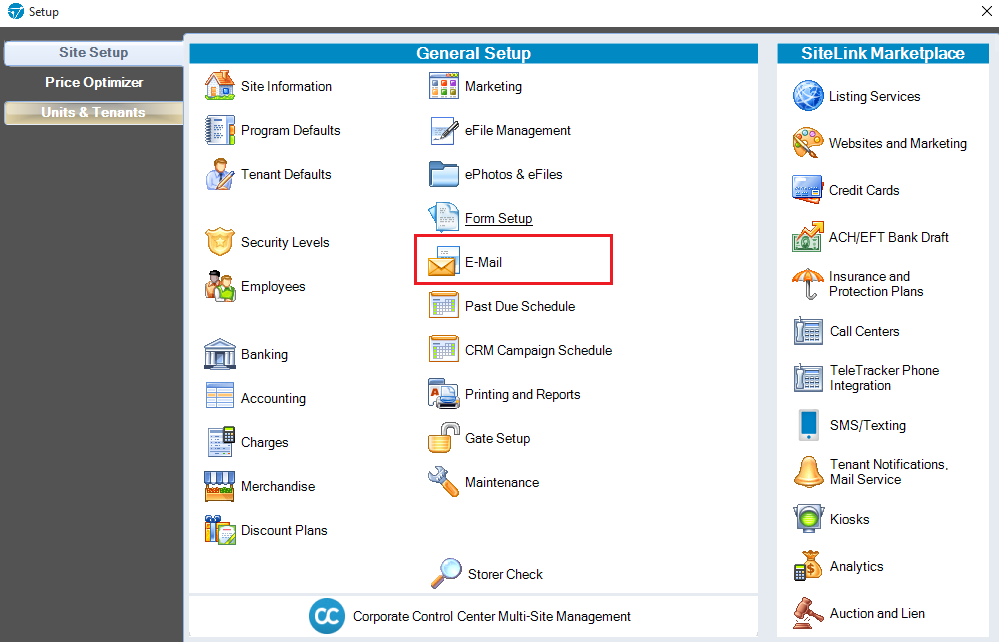
1. In SiteLink Web Edition, navigate to Setup. |
|
2. Click E-Mail. |
|
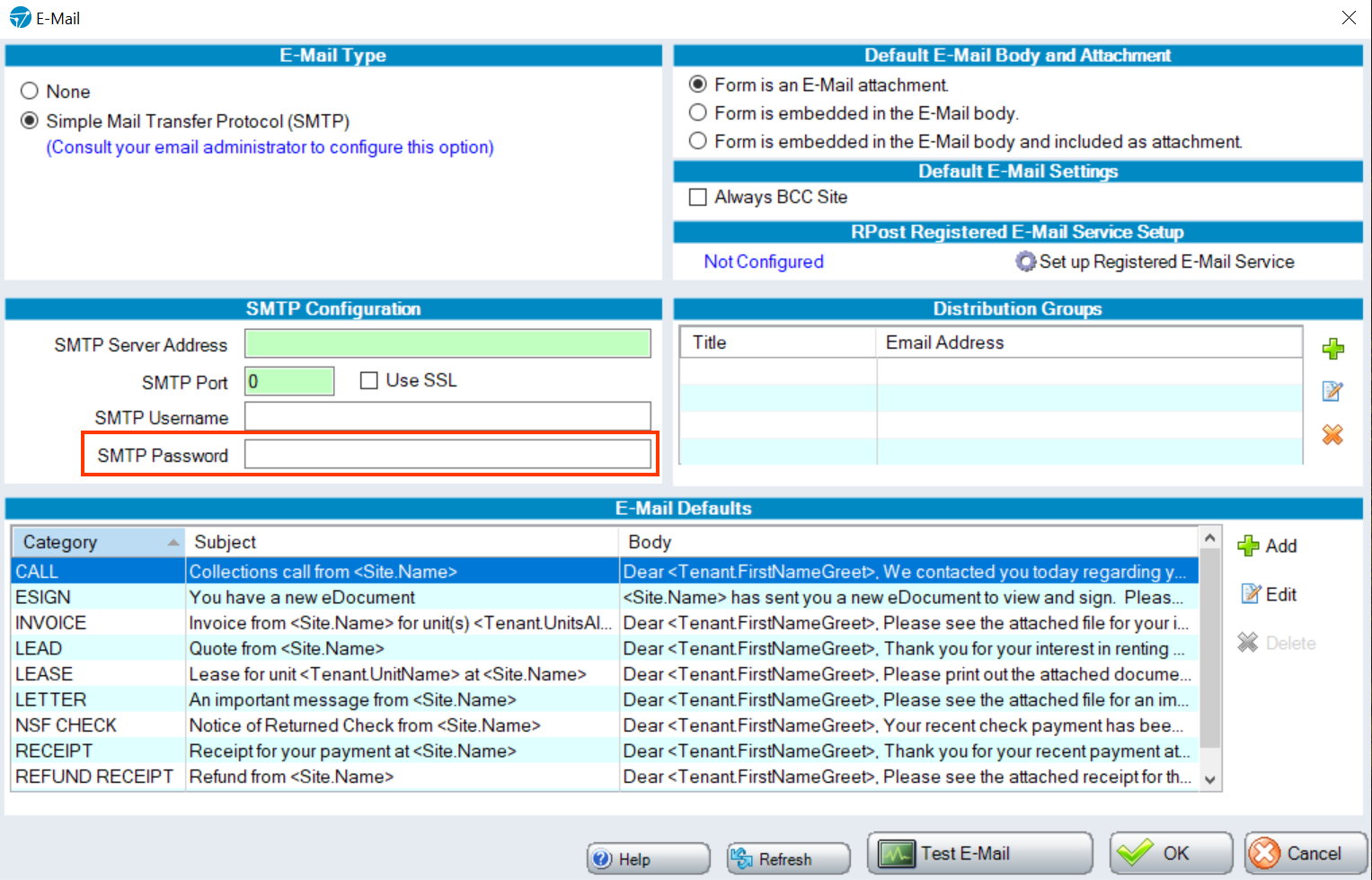
3. The radio button for Simple Mail Transfer Protocol (SMTP) should be selected unless you have already set up email using Outlook (please see the Outlook section below). |
|
4. If you have changed your email password recently, enter the new password in the Password field and click OK to save the changes. |
|
5. The email address in the Username field must match the email that’s in your Store Information. Check the email address in the Username field. |
|
6. Then, go back to the Site Setup screen and click Store Information. |
|
7. Check the E-Mail Address field. If the email addresses don’t match, update them to match and click OK to save your changes. |
|
8. Confirm the Server Address and Port are correct based on your email provider. You can find a list of common email provider Server Addresses in our article: SMTP setup by email provider. |



Gmail and Yahoo
If you are using Gmail or Yahoo as your email provider, you may need to enable an app-specific password.
Google will no longer support the "Less Secure Apps" option for signing in to your Google Account in 3rd-party apps using only your username and password. If you are using this option to connect your Gmail account with SMTP email in SiteLink, please follow our instructions to set up Google App Passwords with 2-Step Authentication.
If you have already set up Google App Passwords:
Gmail
Log into your Gmail account.
Click on your Account icon in the top right corner of the screen.
Click Manage your Google Account.
Select Security from the menu on the left.
Click App Passwords under Signing in to Google.
Enter your password to log in to Google.
Click the Select app dropdown menu and select Other (Custom name).
Type SiteLink into the open field and click Generate.
Copy the password highlighted in yellow.
Paste this password into the Password field on the E-Mail setup screen in SiteLink.

Yahoo
Log in to your Yahoo email account.
Click your Account icon and select Account Info.
Click Account Security from the menu on the left of the screen.
Click Generate APP password.
Click APP and then other app.
Type SiteLink into the open field and click Generate.
Copy the password.
Paste this password into the Password field on the E-Mail setup screen in SiteLink.
If you have already set up Outlook
SiteLink no longer supports an integration with Outlook. New integrations with Outlook are no longer available.
If you have already set up email in SiteLink using Outlook, select the Microsoft Outlook radio button.

The Server Address should be smtp.office365.com.
The Port Number should be 587.
Send a test email
After completing the steps above, send a test email to check that emails can now be sent from SiteLink.
1. Click Test E-Mail. |
|
2. Click Yes from the pop-up to proceed. |
|
3. Enter an email address to send the test to and click OK. We recommend using an email address other than your site email. |
|
4. Click OK. | |


If you do not receive the test email, please contact SiteLink Support at (919) 865- 0789 so that we can further troubleshoot the issue.