
Auto Bill, also called autopay or recurring payments, charges a card or bank account automatically. Follow the instructions below to add or edit a tenant's Auto Billing information:
Note: Account Updater
If you use Storable Payments backed by Stripe, credit cards used for Autopay will be automatically updated with information received from the customer's bank when the card is expiring or is marked as lost/stolen. The stored card information will be removed 15 days after a tenant moves out, in line with industry best practices for data minimization and to maintain the integrity and security of payment data. This feature is enabled by default. If you would prefer not to use Account Updater, reach out to our Support Team.
1. From the Operations screen in SiteLink Web Edition, click on Tenants. |
|
2. Click on the tenant for whom you want to set up or change the Auto Bill, and click Credit Card on the right. |
|
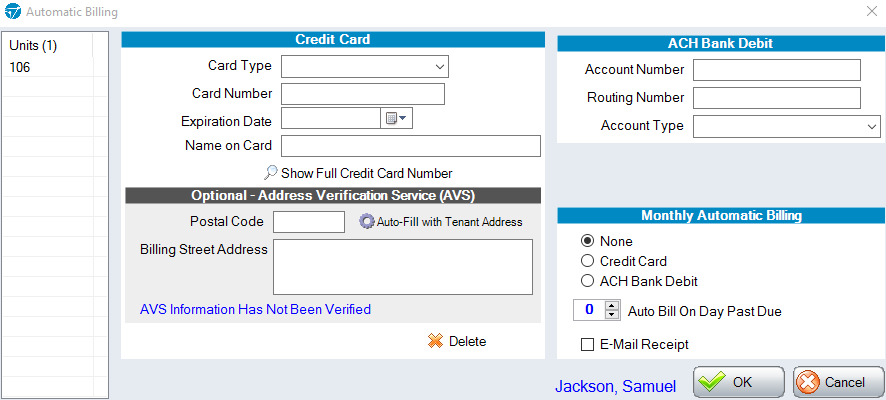
3. Fill out the customer’s credit card or ACH information, depending on how they want to pay. |
|
4. In the bottom right of this screen is the Monthly Automatic Billing section. |
|
|
5. In order to set up automatic billing, select either Credit Card or ACH. If this is left as None, the credit card information will be stored, and you can use it for one-time payments, but it will not be Auto Billed. For example, if a customer calls to make a payment, you can use the card on file.
| |
6. Click OK to save the credit card information. | |



From Ledger Settings on the Tenants or Payment screen
Auto Billing can also be set up or changed by clicking Ledger Settings on the right side of the Tenants page.
1. Select the customer you want to enroll in Auto Bill and click Ledger Settings on the right. |
|
|
2. Under the Auto Bill section, select either Credit Card or ACH.
|
|
3. Click OK to save the credit card information. | |

